うちのゼミの活動を通してわかったことをまとめてマニュアルにしています.
まだ世間では Java は SE 7 が標準なのでしょうか.
Java SE 8 / Java FX 8 に関する情報がまだ世間に少なすぎて,仕方がないので本家ORACLEのサイトを見ながら,サンプルプログラム作って実験しながら自力で使い方を発掘しています.
まだまだ発展途上で,やり残し満載のマニュアルですが,どんどん加筆してゆきます.
PDFで約2.7MBです→javafx_main.pdf
まだクレームをいただけるような状態でもないですが,ご意見いただけたらありがたいです.
→ katsu_wm%mukogawa-u.ac.jp (%を@に変えてください)
【マニュアル中のサンプルプログラム】
● FXsample01.java
● FXsample02.java
● FX3Dsample01.java
● FX3Dsample03.java
貼り付ける画像:texture.gif
● FXMLsample01.fxml
● FXMLsample01.java
● FXMLappl001.java
● FXMLDocumentController.java
● FXMLDocument.fxml
● FXChart01.java
● FXChart02.java
● FXChart03.java
● FXChart04.java
● FXimage01.java
● FXimage02.java
読み込む画像:Earth.jpg
● AnimSample01.java
● FX3Dsample04.java
貼り付ける画像:physical-free-world-map-b1.jpg
● DateTest01.java
● DateTest02.java
● DateTest06.java
● DateTest07.java
● FXsample05.java
● LmbdSample01.java
● SoundTest01.java
● SoundTest02.java
● SoundTest03.java
サウンドサンプル:music001.wav(サイズに注意!:17MB)
(提供元:フリーBGM素材 『霞む道を』 試聴ページ フリーBGM DOVA-SYNDROME)
● GUIdesign01のプロジェクト
● FXsample04.java
—– 目次 —————————————————–
1 はじめに
2 GUI構築の基本
2.1 Applicationクラス
2.2 StageクラスとSceneクラス
2.3 ウィンドウサイズの変更を禁止する設定
2.4 GUIの可視属性の設定
2.5 複数のウィンドウを生成する方法
2.6 アプリケーションの終了に関する処理
2.6.1 アプリケーション終了時に呼び出されるメソッド
3 三次元グラフィックス
3.1 基礎事項
3.2 直方体,円柱,球
3.2.1 シーングラフの準備
3.2.2 Colorクラスによる色の指定
3.2.3 基本的な三次元オブジェクトの扱い
3.2.4 平行移動,回転,拡縮
3.2.5 光源
3.2.6 直投影型カメラ
3.2.7 透視投影型カメラ
3.3 メッシュ・グラフィックス
3.3.1 メッシュへのテクスチャの貼付け
4 FXMLを利用したGUI構築
4.1 サンプルプログラム
4.2 NetBeans IDEの利用
4.2.1 生成された雛形を利用したアプリケーション開発
4.2.2 単独で動作するアプリケーションの生成について
4.3 Java FX Scene Builder
4.3.1 インスペクタ
4.3.2 イベントハンドラとの関連付け
4.3.3 NetBeans IDEとの連携
5 図形の描画
5.1 Shapeを利用した描画
5.1.1 線の描画: Line / Polyline
5.1.2 線に属性を与えるメソッド
5.1.3 図形描画における「枠」と「塗り」
5.1.4 各種図形の描画: Rectangle / Circle / Ellipse / Arc / Polygon
5.1.5 塗りの属性
5.1.6 文字の描画: Text
5.1.6.1 システムで利用できるフォントを調べる方法
5.1.7 画像の表示: ImageView
5.1.8 Shapeオブジェクトの位置の設定: relocate
5.2 Canvasを利用した描画
5.2.1 GraphicsContext
5.2.2 各種の描画メソッド
5.3 チャートの描画
5.3.1 棒グラフ:BarChart
5.3.2 折れ線グラフ:LineChart
5.3.3 円グラフ:PieChart
5.4 画像データの扱い
5.4.1 画像データの入力: Imageクラス
5.4.2 画素(ピクセル)の操作
5.4.3 画像データの出力
5.4.4 サンプルプログラム
5.4.5 ノードの描画状態のキャプチャ
6 時間によるイベント処理(アニメーション)
6.1 タイミング・イベントについて
6.2 タイムラインとキーフレーム
6.3 サンプルプログラム
7 日付と時刻
7.1 旧来のAPI(Java SE 7)
7.1.1 日付と時刻のためのクラス
7.2 新しいAPI(Java SE 8)
7.2.1 基本的なクラス
7.2.2 日付・時刻に関する基本的な処理
7.2.3 和暦の扱い
8 ラムダ式
8.1 イベントハンドラ登録への応用
8.2 関数型インターフェースでの応用
9 サウンドの再生(Java SE 7)
9.1 基礎事項
9.2 実用的なサウンド再生
10 メディアデータの再生(Java FX 8)
10.1 動画再生に関すること
11 付録
11.1 Java FXで利用できるGUIの部品(代表的なもの)
11.1.1 コンテナ:Containers
11.1.1.1 HBox,VBoxを用いたGUIの配置
11.1.2 コントロール:Controlls
11.1.2.1 項目データを与える方法
11.1.3 値の変化を検知するイベント
11.2 メニューの構築
11.3 ファイル選択ダイアログの実装
11.4 Java FX 8 の重要なクラス
11.5 イベントについて
11.5.1 旧来のGUIで扱うイベント
11.5.2 タッチデバイスで扱うイベント
—————————————————————-
「Java」カテゴリーアーカイブ
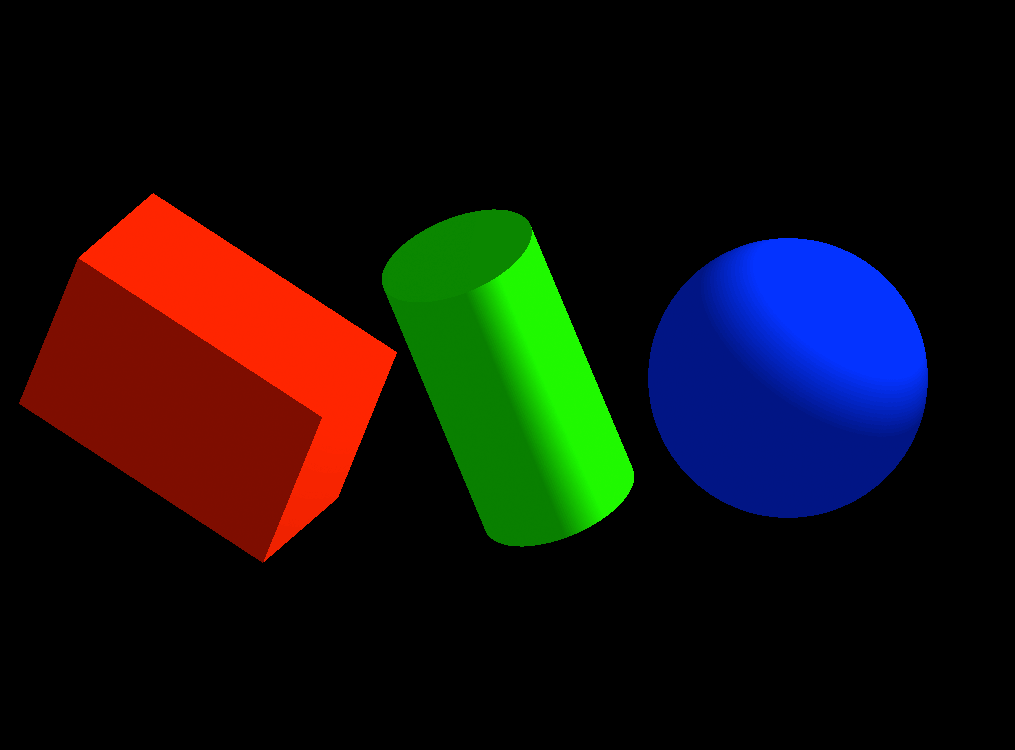
超入門:立体の表示,回転と平行移動,カメラ,光源の基本
import javafx.application.Application;
import javafx.scene.*;
import javafx.scene.layout.*;
import javafx.scene.paint.*;
import javafx.stage.Stage;
import javafx.scene.shape.*;
import javafx.scene.transform.*;
import javafx.geometry.Point3D;
public class FX3Dsample01 extends Application {
@Override
public void start(Stage Stage) {
//--- Top Node and Scene ---
Group root = new Group();
Scene scene = new Scene(root, 1024, 768, Color.rgb(0,0,0));
// Axis for Rotation
Point3D aX = new Point3D(100,0,0);
Point3D aY = new Point3D(0,100,0);
Point3D aZ = new Point3D(0,0,100);
//--- Solid Model Generation ---
// (Box)
Box bx1 = new Box(300d,200d,150d);
root.getChildren().add(bx1);
PhongMaterial mt1 = new PhongMaterial(); // 別々に作る!
mt1.setDiffuseColor(Color.rgb(255,0,0));
bx1.setMaterial(mt1);
bx1.getTransforms().addAll(
new Translate(-300d,0d,0d), // 先に平行移動
new Rotate(30,aX),
new Rotate(30,aY),
new Rotate(20,aZ)
);
// (Cylinder)
Cylinder cl1 = new Cylinder(80d,300d);
root.getChildren().add(cl1);
PhongMaterial mt2 = new PhongMaterial(); // 別々に作る!
mt2.setDiffuseColor(Color.rgb(0,255,0));
cl1.setMaterial(mt2);
cl1.getTransforms().addAll(
new Rotate(30,aX),
new Rotate(0,aY),
new Rotate(-20,aZ)
);
// (Sphere)
Sphere sp1 = new Sphere(140d);
root.getChildren().add(sp1);
PhongMaterial mt3 = new PhongMaterial(); // 別々に作る!
mt3.setDiffuseColor(Color.rgb(0,0,255));
sp1.setMaterial(mt3);
sp1.getTransforms().addAll(
new Translate(280d,0d,0d)
);
//--- Light Setting ---
AmbientLight aLight = new AmbientLight(Color.rgb(127, 127, 127));
root.getChildren().add(aLight);
PointLight pLight = new PointLight(Color.rgb(255,255,255));
pLight.setTranslateX(500d);
pLight.setTranslateY(-300d);
pLight.setTranslateZ(-200d);
root.getChildren().add(pLight);
//--- Camera Setting ---
ParallelCamera cmr = new ParallelCamera();
cmr.getTransforms().addAll(
new Translate(-512d,-384d,0d)
);
scene.setCamera(cmr);
//--- Window Activation ---
Stage.setTitle("FX3Dsample01");
Stage.setScene(scene);
Stage.show();
}
public static void main(String[] args) {
launch(args);
}
}
Java FX による3次元CG作成入門
マニュアルをまとめつつあります.
■ 超入門: 立体の表示,回転と平行移動,カメラ,光源の基本
FXMLアプリケーション構築例(NetBeans IDE & Java FX Scene Builder)
(マニュアルをまとめつつあります.)
ここでは,NetBeansIDEとJava FX Scene Builerを用いた画像ビューワのアプリ構築の例を紹介します.
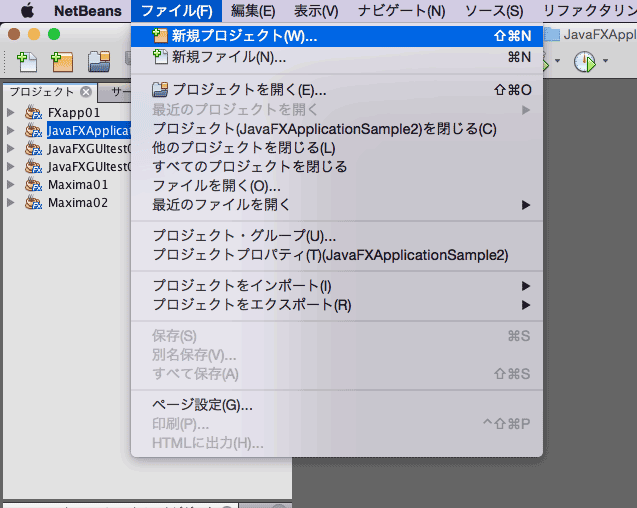
1. 新規プロジェクトの作成(FXMLappl01)

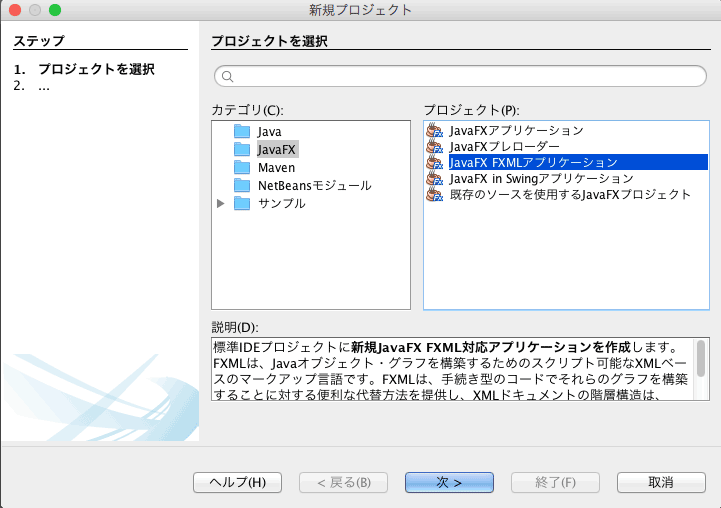
「Java FX FXMLアプリケーション」を選択します.

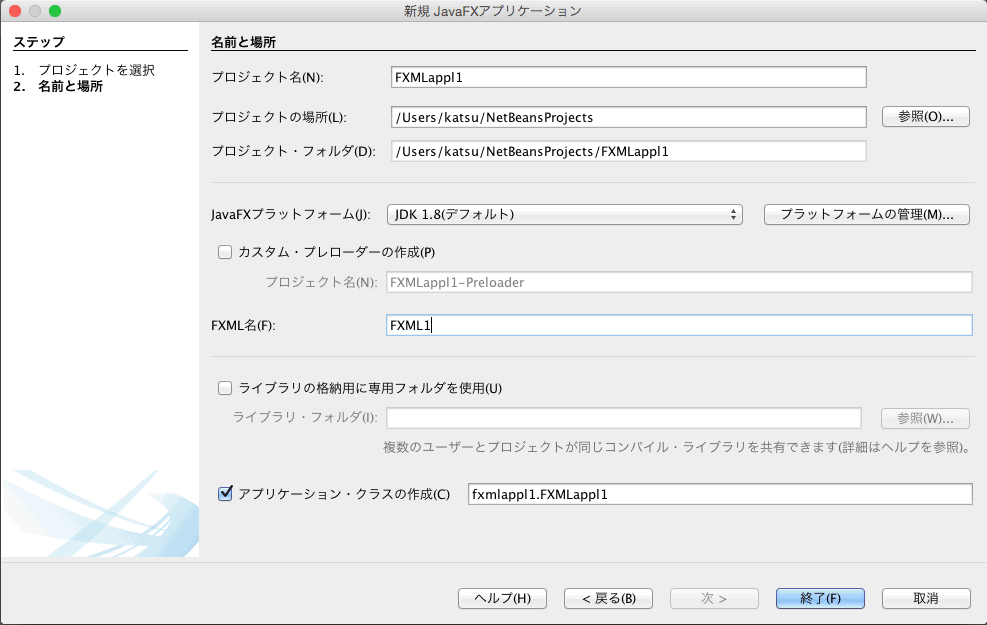
「プロジェクト名」と「FXML名」を設定します.

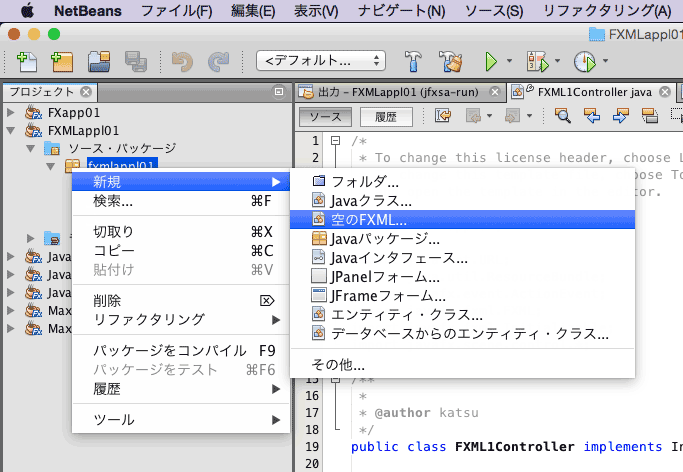
空のFXMLを追加します.

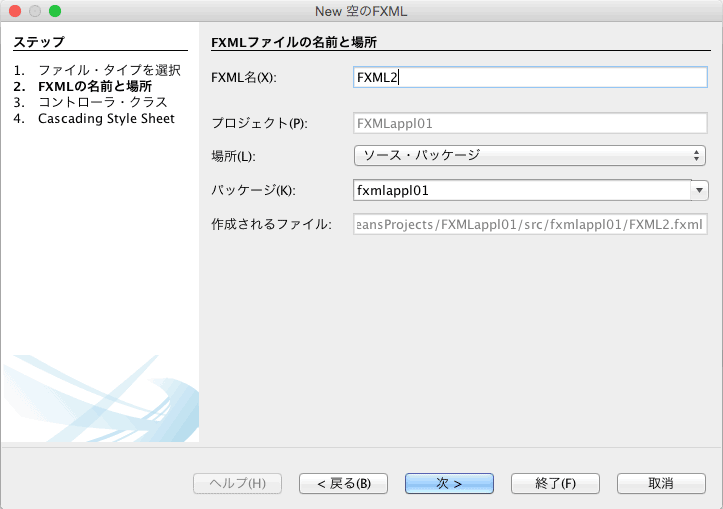
FXMLファイルの名前を指定します.

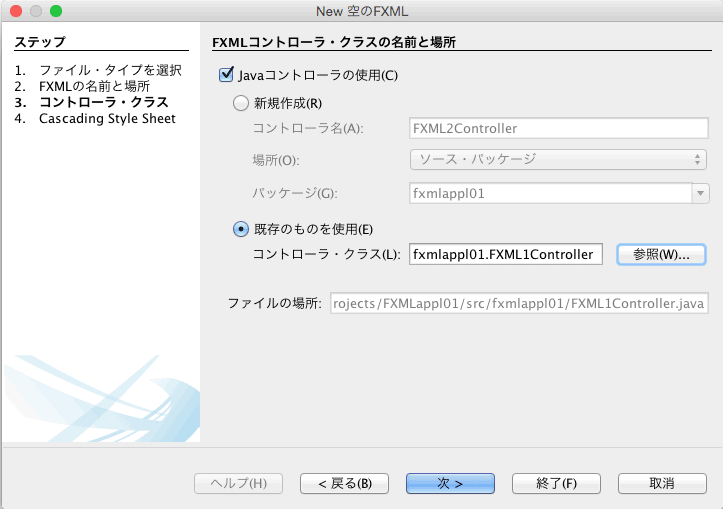
ここでは既存のFXMLコントローラを使うことにします.

FXMLのコード:FXML1.fxml
FXMLのコード:FXML2.fxml
ファイル:FXMLappl01.java
package fxmlappl01;
import javafx.application.Application;
import javafx.fxml.FXMLLoader;
import javafx.scene.Parent;
import javafx.scene.Scene;
import javafx.scene.image.Image;
import javafx.stage.Stage;
public class FXMLappl01 extends Application {
public static Stage stage2;
@Override
public void start(Stage stage) throws Exception {
Parent root = FXMLLoader.load(getClass().getResource("FXML1.fxml"));
Scene scene = new Scene(root);
stage.setTitle("Main Window");
stage.setScene(scene);
stage.show();
/* Another Window */
stage2 = new Stage();
stage2.initOwner(stage);
Parent root2 = FXMLLoader.load(getClass().getResource("FXML2.fxml"));
Scene scene2 = new Scene(root2);
stage2.setTitle("Picture Window");
stage2.setScene(scene2);
stage2.show();
/* image from "http://www.ashinari.com/" */
Share.img1 = new Image(getClass().getResourceAsStream("1.jpg"));
Share.img2 = new Image(getClass().getResourceAsStream("2.jpg"));
}
public static void main(String[] args) {
launch(args);
}
}
ファイル:Share.java
package fxmlappl01;
import javafx.scene.image.*;
public class Share {
public static Image img1, img2;
}
ファイル:FXML1Controller.java
package fxmlappl01;
import java.net.URL;
import java.util.ResourceBundle;
import javafx.event.ActionEvent;
import javafx.fxml.FXML;
import javafx.fxml.Initializable;
import javafx.scene.control.*;
import javafx.scene.image.*;
public class FXML1Controller implements Initializable {
@FXML
private Button btn1, btn21, bnt22, btn23;
@FXML
private ImageView iv1;
@FXML
private void handleButton_btn1(ActionEvent ev) {
System.out.println("Open Another Window!");
FXMLappl01.stage2.show();
}
@FXML
private void handleButton_btn21(ActionEvent ev) {
iv1.setImage(Share.img1);
}
@FXML
private void handleButton_btn22(ActionEvent ev) {
iv1.setImage(Share.img2);
}
@FXML
private void handleButton_btn23(ActionEvent ev) {
iv1.setImage(null);
}
@Override
public void initialize(URL url, ResourceBundle rb) {
// TODO
}
}
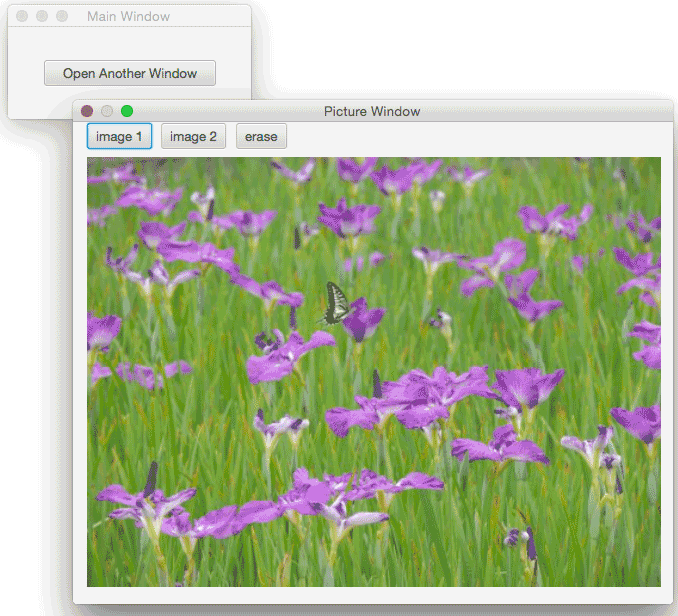
このアプリを実行したところ:

プロジェクト全体(Zip圧縮):FXMLappl01.zip
アプリケーションプログラムを作るには
プログラミング言語の最終的な目的は,アプリケーションプログラムの作成です.
いわゆる「アプリ」を作るのが目的です.
ここではJavaで実現するアプリにはどのような形があるのかを紹介します.
● コマンドとしてアプリを作る
Windowsのコマンドプロンプトウィンドウ(Macの場合はターミナルウィンドウ)で実行するプログラムで,基本的にはグラフィックスは扱いません.これの実現は最も手軽で,標準入力(System.inなど)からユーザの操作を受付,標準出力(System.outなど)に対してメッセージを表示するスタイルです.
● アプレットを作る
Webブラウザ上で実行するプログラムで,HTMLコンテンツの中に埋め込んで使います.
● GUIアプリを作る (1) : Swingの利用
● GUIアプリを作る (2) : SWTの利用
● GUIアプリを作る (3) : FXの利用
日付と時間(2)
「日付と時刻」をデータとして扱う方法です.Date クラスのオブジェクトは生成時にその時点の日付&時刻を取得しますが,ここで紹介する Calendar クラスのオブジェクトは日付&時刻を1つのデータと見て日数計算(「〜日あと」とか「〜週間前」,「〜時間後」とかの計算)をするためのものです.
下のサンプルプログラム “CalendarTest1.java” では最初に「2014/01/01,00:00:00」の日付をデータとして用意して「〜日後」「〜時間後」のような計算をしている例です.
set() メソッドで日付や時刻を設定し,add() メソッドで日数や時間を加算し,get() メソッドで日付や時刻を取り出します.
import java.util.*;
class CalendarTest1 {
public static void main( String argv[] ) {
int y, m, d, wd2, h, min, sec;
Calendar cal = Calendar.getInstance();
String wd[] = { "日", "月", "火", "水", "木", "金", "土" };
/* 2014/01/01, 00:00:00 */
cal.set(Calendar.YEAR,2012);
cal.set(Calendar.MONTH,1-1);
cal.set(Calendar.DATE,1);
cal.set(Calendar.HOUR_OF_DAY,0);
cal.set(Calendar.MINUTE,0);
cal.set(Calendar.SECOND,0);
/* after 86,400 seconds */
cal.add(Calendar.SECOND,86400);
y = cal.get(Calendar.YEAR);
m = cal.get(Calendar.MONTH) + 1;
d = cal.get(Calendar.DATE);
wd2 = cal.get(Calendar.DAY_OF_WEEK) - 1;
System.out.printf("%d/%02d/%02d(%s)\n",y,m,d,wd[wd2]);
/* after 12 Months */
cal.add(Calendar.MONTH,12);
y = cal.get(Calendar.YEAR);
m = cal.get(Calendar.MONTH) + 1;
d = cal.get(Calendar.DATE);
wd2 = cal.get(Calendar.DAY_OF_WEEK) - 1;
System.out.printf("%d/%02d/%02d(%s)\n",y,m,d,wd[wd2]);
/* after 28 Days */
cal.add(Calendar.DATE,28);
y = cal.get(Calendar.YEAR);
m = cal.get(Calendar.MONTH) + 1;
d = cal.get(Calendar.DATE);
wd2 = cal.get(Calendar.DAY_OF_WEEK) - 1;
System.out.printf("%d/%02d/%02d(%s)\n",y,m,d,wd[wd2]);
/* after 24 Hours */
cal.add(Calendar.HOUR_OF_DAY,24);
y = cal.get(Calendar.YEAR);
m = cal.get(Calendar.MONTH) + 1;
d = cal.get(Calendar.DATE);
wd2 = cal.get(Calendar.DAY_OF_WEEK) - 1;
System.out.printf("%d/%02d/%02d(%s)\n",y,m,d,wd[wd2]);
/* after 31,536,000 Seconds */
cal.add(Calendar.SECOND,31536000);
y = cal.get(Calendar.YEAR);
m = cal.get(Calendar.MONTH) + 1;
d = cal.get(Calendar.DATE);
wd2 = cal.get(Calendar.DAY_OF_WEEK) - 1;
System.out.printf("%d/%02d/%02d(%s)\n",y,m,d,wd[wd2]);
}
}
このプログラムを実行すると,次のような内容が表示されます.
2012/01/02(月)
2013/01/02(水)
2013/01/30(水)
2013/01/31(木)
2014/01/31(金)
文字列⇔数値の変換
int, long, double といった数値の型の変数と文字列(String)オブジェクトの間で値の変換をすることは,実際のプログラミングでよく行われます.
数値から文字列に変換するには valueOf() メソッドを使います.また逆に文字列として表現されている数値を解釈して int, long, double などの型の変数に値を入れるには parse型名() メソッドを用います.
これらのメソッドを用いたサンプルを “valueConv1.java” に示します.
class valueConv1 {
public static void main( String argv[] ) {
int i = 1;
long l = 2;
double f = 3.4;
String is, ls, fs;
is = String.valueOf(i); // int -> String
ls = String.valueOf(l); // long -> String
fs = String.valueOf(f); // double -> String
System.out.printf("\'%s\' , \'%s\' , \'%s\'\n",is,ls,fs);
i = Integer.parseInt(is); // String -> int
l = Long.parseLong(ls); // String -> long
f = Double.parseDouble(fs); // String -> double
System.out.printf("%d , %d , %.1f\n",i,l,f);
}
}
これを実行すると次のような表示になります.
'1' , '2' , '3.4'
1 , 2 , 3.4
オブジェクトのクラスを調べる方法
オブジェクトが属するクラスを調べる方法です.
getClass() メソッドでクラス情報を取得して,それに対して getName() メソッドをを実行することで,オブジェクトが属するクラスの名前を文字列(String)オブジェクトとして取得することができます.
次のサンプルプログラム “ClassCheck1.java” はそれを実行する例です.
class TestClass {
}
class ClassCheck1 {
public static void main( String argv[] ) {
String name = "test";
TestClass o = new TestClass();
name = o.getClass().getName();
System.out.println(name);
name = name.getClass().getName();
System.out.println(name);
}
}
このプログラムを実行すると,次のような表示になります.
TestClass
java.lang.String
ファイルへの出力:テキストファイル
ファイルへの出力の方法です.
ここでは,テキストファイルとしてデータを出力する方法を紹介します.
【基本】
次のプログラム “FileWrite1.java” はファイル “text2.txt” に対してテキストデータを出力する例です.
import java.io.*;
class FileWrite1 {
public static void main( String argv[] ) {
FileWriter fw;
try {
fw = new FileWriter("text2.txt");
fw.write("This is an output data from\n");
fw.write("FileWrite1.\n");
fw.write("日本語の出力です.\n");
fw.close();
} catch( IOException e ) {
}
}
}
ファイルを FileWriter というクラスのオブジェクトとして生成しています.これを実行すると,ファイル “text2.txt” に次のような内容が書き込まれます.
This is an output data from
FileWrite1.
日本語の出力です.
【便利な方法】
FileWriter を元に PrintWriter というクラスのオブジェクトを生成すると,それに対して print, println, printf といった出力用のメソッドを用いて内容を出力することができます.次のプログラム “FileWrite2.java” は printf メソッドを用いて書式を指定して正弦関数の定義域と値域を出力する例です.
import java.io.*;
class FileWrite2 {
public static void main( String argv[] ) {
FileWriter fw;
PrintWriter pw;
try {
fw = new FileWriter("text3.txt");
pw = new PrintWriter(fw);
double x, y;
for ( x = 0.0; x < 6.3; x += 0.1 ) {
y = Math.sin(x);
pw.printf("sin(%.1f) = %.10f\n",x,y);
}
fw.close();
} catch( IOException e ) {
}
}
}
これを実行すると,ファイル "text3.txt" に次のような内容が出力されます.
sin(0.0) = 0.0000000000
sin(0.1) = 0.0998334166
sin(0.2) = 0.1986693308
sin(0.3) = 0.2955202067
sin(0.4) = 0.3894183423
(以下省略)
日付と時間
Javaには日付と時間(時刻)のデータを扱うための高度な機能があります.
ただ,初心者には理解し難いものもあるので,ここでは素朴な例を挙げます.
Javaのクラスライブラリに Date というクラスがあり,このクラスのインスタンスを new で生成すると,現在の日付と時刻に関するデータを保持するオブジェクトができます.
下の例 “DateTest1.java” では年,月,日,曜日,時,分,秒を手軽に取り出すメソッドを備えたクラス Date2(Dateクラスの拡張)を実装しています.
import java.util.*;
import java.text.*;
class Date2 extends Date {
/*--------------------------------------*
* constructor *
*--------------------------------------*/
Date2(int year, int month, int day) {
}
Date2() {
}
/*--------------------------------------*
* methods *
*--------------------------------------*/
/* Date2 -> Year */
public int Date2Year() {
int y;
SimpleDateFormat f;
f = new SimpleDateFormat("yyyy");
y = Integer.parseInt(f.format(this));
return( y );
}
/* Date2 -> Month */
public int Date2Month() {
int m;
SimpleDateFormat f;
f = new SimpleDateFormat("MM");
m = Integer.parseInt(f.format(this));
return( m );
}
/* Date2 -> Day */
public int Date2Day() {
int d;
SimpleDateFormat f;
f = new SimpleDateFormat("dd");
d = Integer.parseInt(f.format(this));
return( d );
}
/* Date2 -> Week day */
public String Date2WDay() {
String wd;
SimpleDateFormat f;
f = new SimpleDateFormat("E");
wd = f.format(this);
return( wd );
}
/* Date2 -> Hour */
public int Date2Hour() {
int h;
SimpleDateFormat f;
f = new SimpleDateFormat("hh");
h = Integer.parseInt(f.format(this));
return( h );
}
/* Date2 -> Minute */
public int Date2Min() {
int m;
SimpleDateFormat f;
f = new SimpleDateFormat("mm");
m = Integer.parseInt(f.format(this));
return( m );
}
/* Date2 -> Second */
public int Date2Sec() {
int s;
SimpleDateFormat f;
f = new SimpleDateFormat("ss");
s = Integer.parseInt(f.format(this));
return( s );
}
}
class DateTest1 {
public static void main( String argv[] ) {
int y,m,day,h,min,sec;
String wd;
Date2 d = new Date2(); // 現在の日付,時刻の取得
y = d.Date2Year(); // 年の取得
m = d.Date2Month(); // 月の取得
day = d.Date2Day(); // 日の取得
wd = d.Date2WDay(); // 曜日の取得
h = d.Date2Hour(); // 時の取得
min = d.Date2Min(); // 分の取得
sec = d.Date2Sec(); // 秒の取得
System.out.printf("%d/%d/%d (%s), %s:%s:%s\n",
y,m,day,wd,h,min,sec);
}
}
このプログラムを実行すると,その時の日付と時刻を表示します.